
Create a new event
Last updated: May 20, 2025
There are two ways to create a new event: duplicate an existing event or use Videosync’s template library.
Option 1: Duplicate an existing event
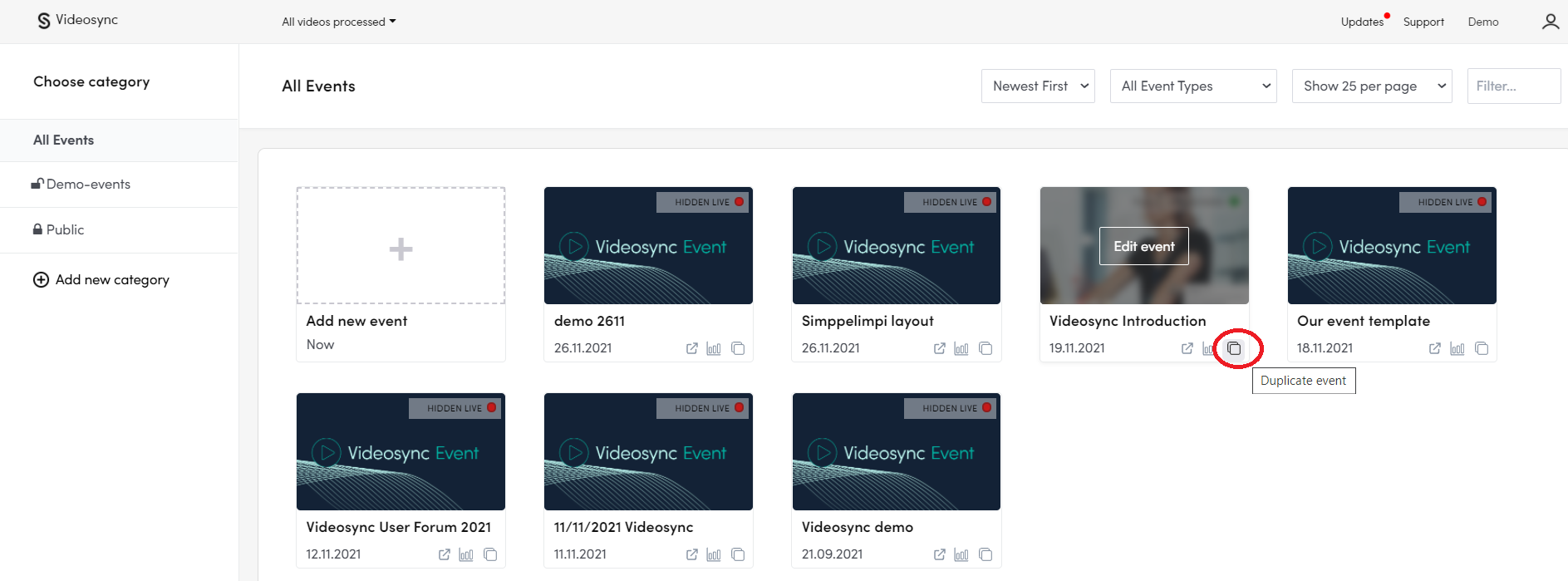
In the All Events or Category view, click the duplicate icon (highlighted in red below) on the event you want to copy.
A modal window will open:
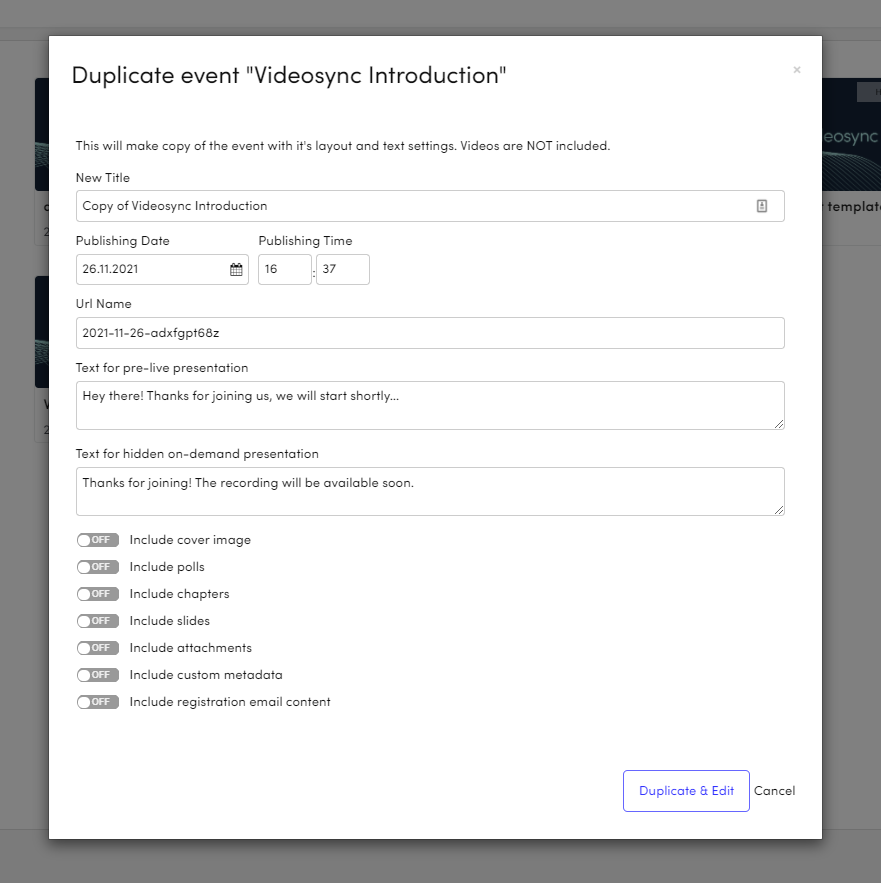
Fill in the required details:
- New Title: Name for your new event
- Date and time: When the event will take place
- URL Name: The last part of your event URL (e.g., accountname.videosync.events/UrlName)
- Text for pre-live presentation: Placeholder text shown before the event goes live (e.g., “Please stand by, we’ll be starting soon…”)
- Text for hidden on-demand presentation: Placeholder text shown after the event ends (e.g., “Thanks for joining! Our next event is on November 30th…”)
Option 2: Create from scratch or use templates
Click the + button in the event listing view. The following modal will open:
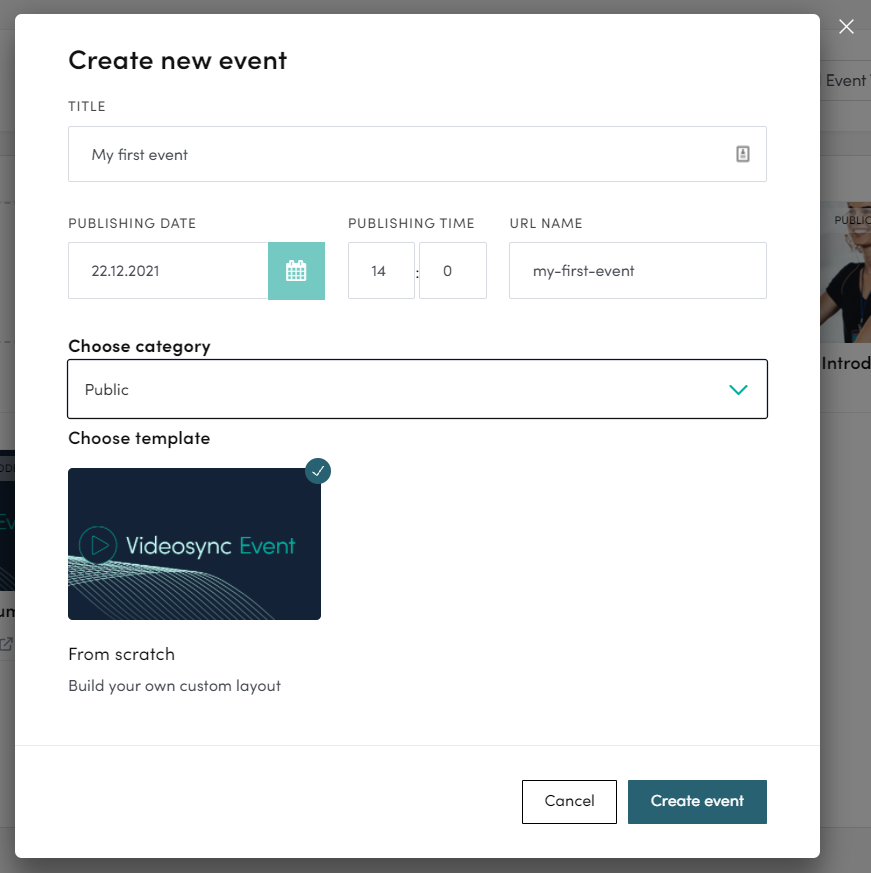
Fill in all fields:
- Title: Name for your event
- Date and time: When the event will take place
- URL Name: The last part of your event URL (e.g., accountname.videosync.events/UrlName)
- Category: Select a category (required)
- Template: Choose a template by clicking on it
- Click Create event
The following screen appears:
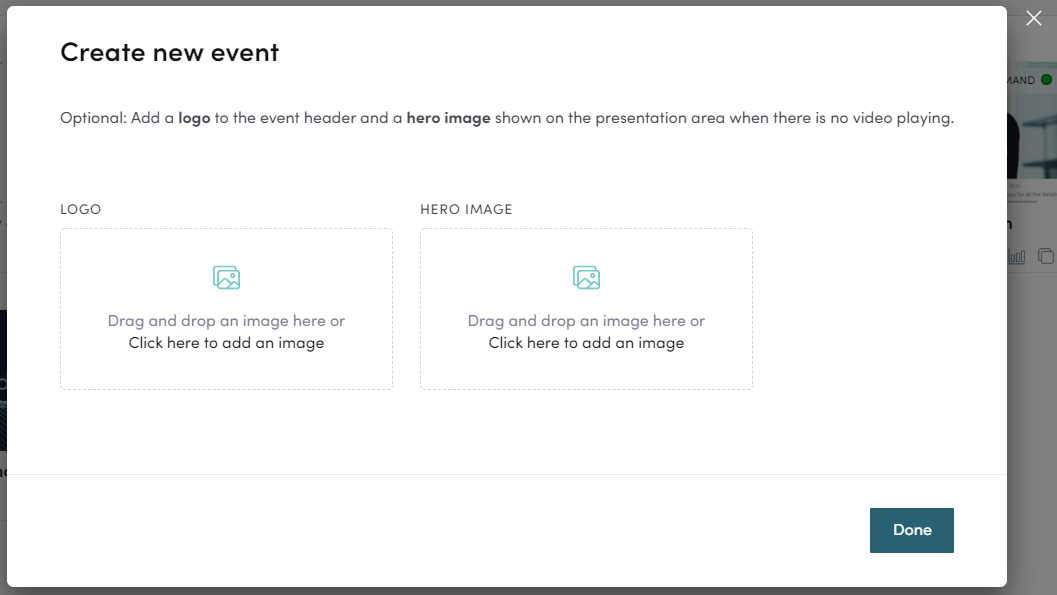
You can skip this step by clicking Done, or optionally:
- Upload a logo to use on your event site
- Upload a hero image in wide rectangle format (e.g., 1920 × 1000 pixels). This image appears as the video player placeholder before the event goes live or before the recording is published.
After completing these steps, you’ll be taken to the event settings view where you can customize visuals, features, and content.