On-site participant features
Last updated: September 8, 2025
Apologies, this instruction is under construction. But we’re working on it and it will be soon available. Please contact support@videosync.fi if you need help in this topic.
Videosync provides multiple ways for the on-site participants to interact with the event.
Here we will provide the most important ones and instruct you on how to use them for their full potential.
Onsite app
Onsite app is a separate web page from the actual event site that the participants can use for the following:
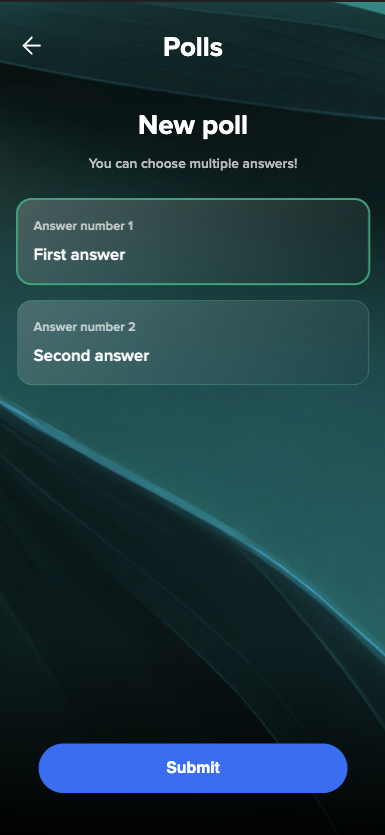
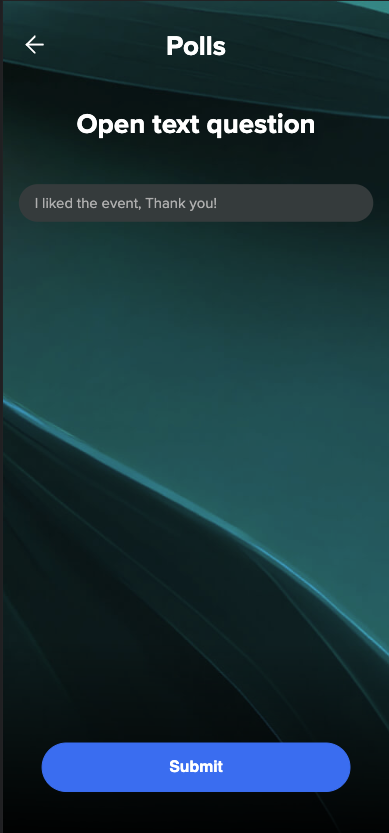
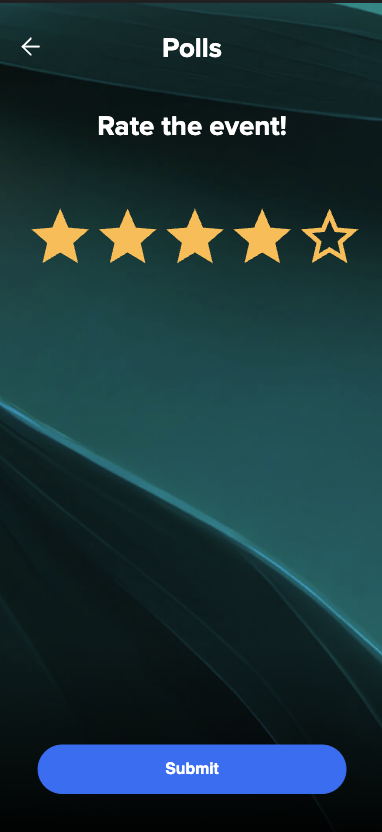
- Vote in polls
- Send chat messages/questions
Enabling Onsite app
In Videosync event admin, under Build category and within the Audience interactions settings you will find a section called Onsite app.
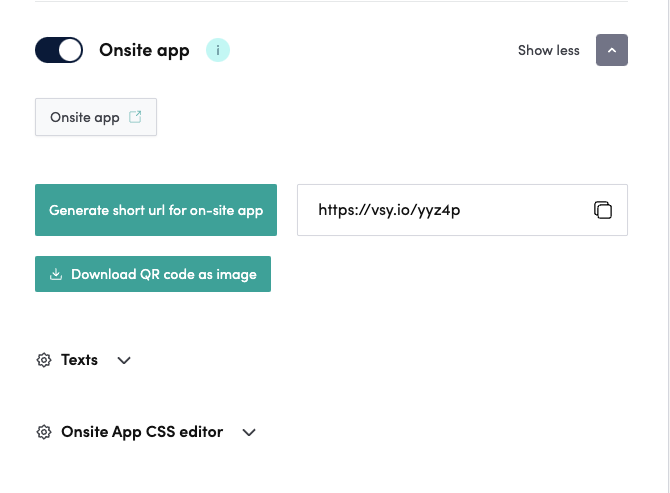
To enable the Onsite app, you need to toggle it on next to the header Onsite app.
Now if the event is not in Build state, you may open the Onsite app using the button directly below the toggle.
Sharing Onsite app to participants (Short URL & QR code)
By clicking the button Generate short url for on-site app, you create a simple link that is easy to share for the on-site participants, e.g. https://vsy.io/yyz4p .
Creating the short url also enables the button to Download QR code as image.
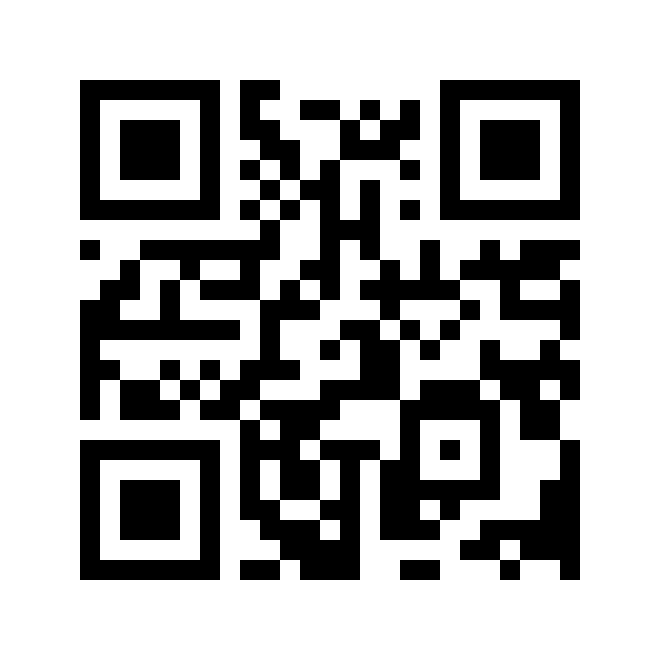
By clicking this button you will download an image of a QR code that redirects user to the short url of the Onsite app.
Customizing Onsite app
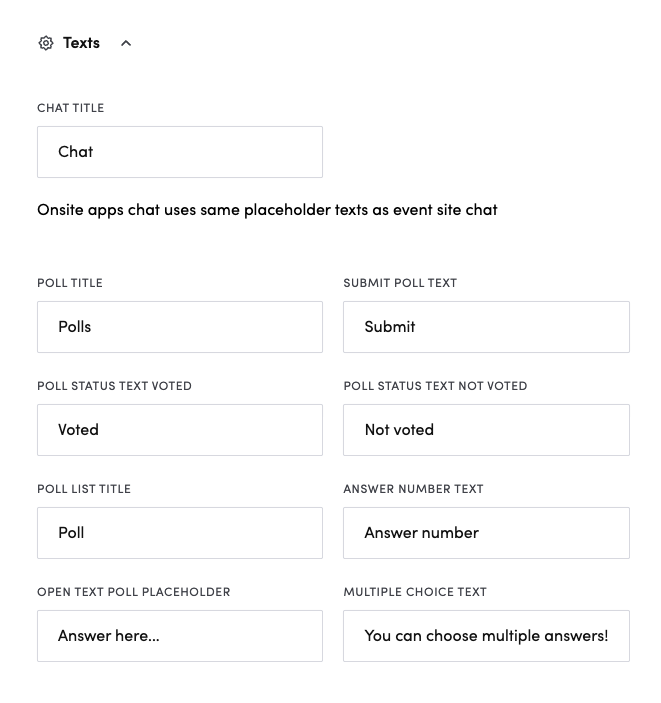
The Onsite app settings also provides a Texts menu that allows you to change the visible texts withing the onsite app, in case you want to translate the texts to a different language, for example.
Advanced: Below the Texts menu there is also an Onsite App CSS editor that allows you to fully customize the visuals of the Onsite app using CSS.
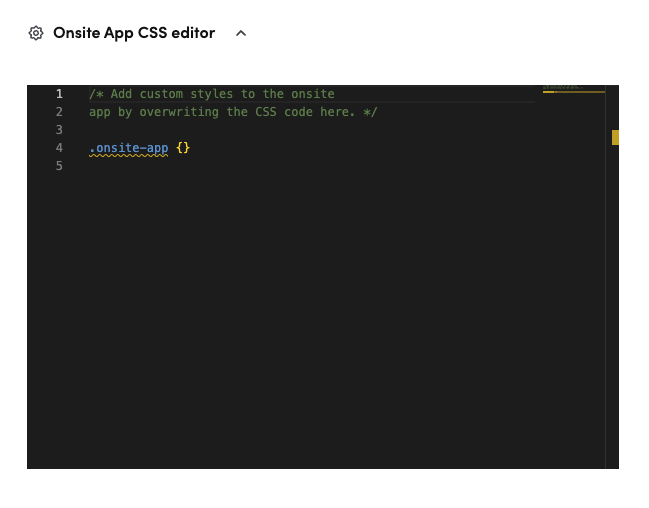
For example, changing the background image would be the following code snippet:
.onsite-app .center {
	background-image: url("https://cdn.videosync.fi/images/backgrounds/onsite_bg.jpg");
}
Where the URL in quotes could be copied an image visible on the actual Videosync event page.
Using Onsite app
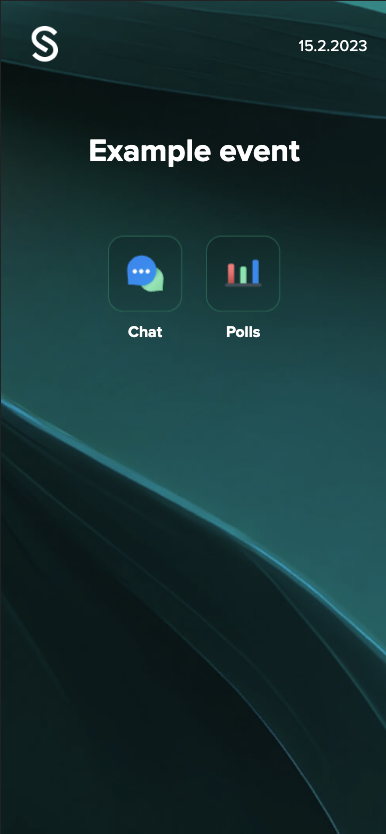
Main menu
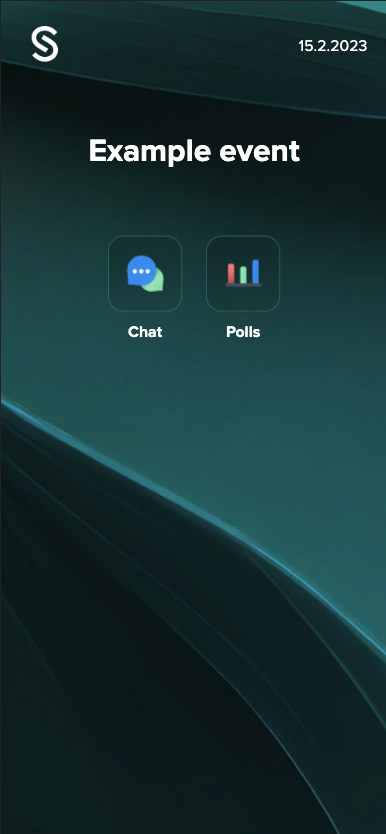
Displays the event date and title along with buttons to access Chat and Polls.
Chat
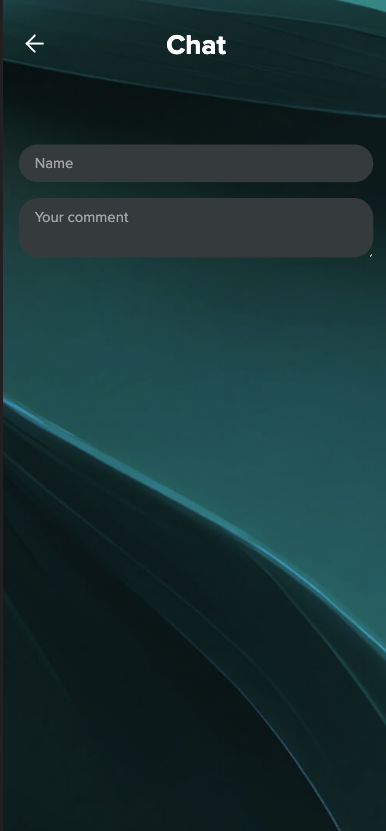
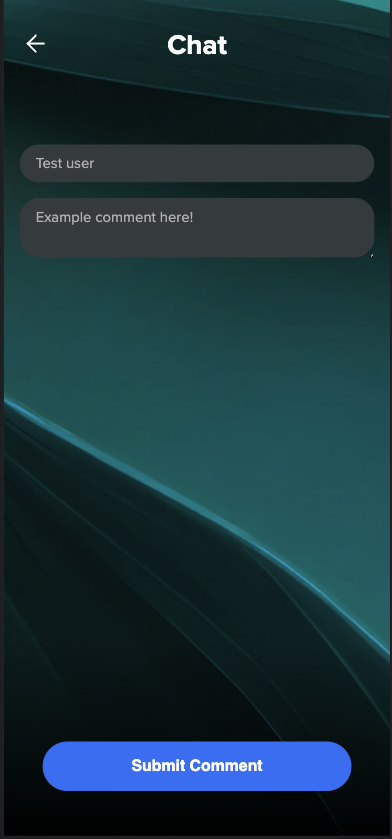
Chat page shows two inputs for your name and comment. After filling the two fields, a Submit comment button appears to the bottom.
Polls
Polls page shows a list of all available polls with their title and an indicator whether you have voted to it or not.
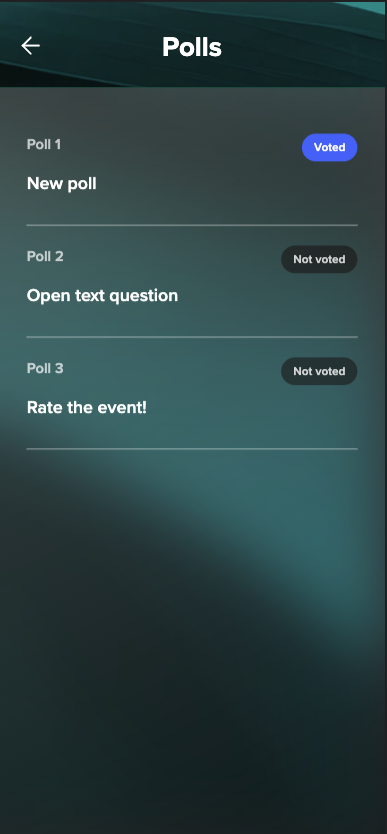
By clicking a single poll on the list, a separate page opens where you can vote to that specific poll.