
Streaming from Microsoft Teams Rooms
Last updated: August 13, 2025
If you or your client has invested in meeting room equipment that can be only used with Microsoft Teams, or the company network firewalls are set so that accessing Web Studio is simply not possible, streaming to Videosync with Teams might come handy.
This guide will instruct how to utilize Teams to stream to a Videosync event:
- Sending RTMP stream in Teams
- Controlling stream visibility
- Operating slides when streaming with Teams
- Connecting and managing a conference call when using Teams for streaming video & audio source
Sending RTMP stream in Teams
Microsoft Teams supports streaming to external endpoints using RTMP-Out. To stream from Teams to Videosync:
-
Get your RTMP credentials from Videosync: In your Videosync event, navigate to the streaming settings to find your RTMP URL and stream key.
-
Start or join your Teams meeting: Open Microsoft Teams and start the meeting you want to stream.
-
Open the Custom Streaming app: In the meeting, click on Apps in the meeting toolbar and search for Custom Streaming. Add it to your meeting.
-
Configure the stream: In the Custom Streaming app, enter:
- RTMP URL: The streaming URL from your Videosync event
- Stream key: The stream key provided by Videosync
-
Start streaming: Click Start Streaming to begin broadcasting your Teams meeting to Videosync.
Note: RTMP-Out must be enabled by your Teams administrator. If you don’t see the Custom Streaming option, contact your IT department to enable this feature.
Controlling stream visibility
On top of the tool, you can see a state selector. When event is in Pending mode, the stream is not visible to the audience on the event page. When you click Go live, your event site starts streaming your content.
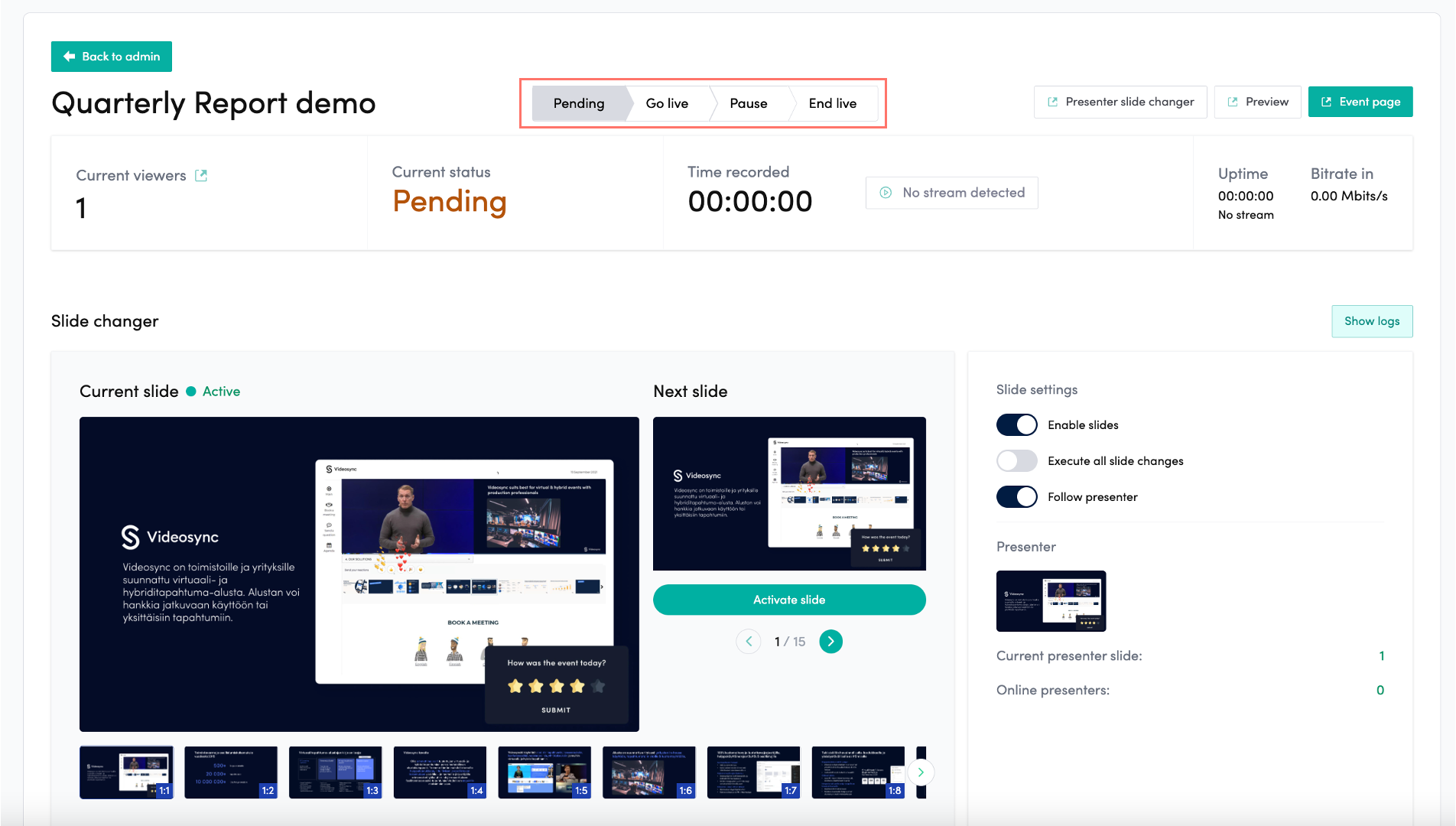
You’ll see Start recording below state selector when a stream is detected. If you forget to click record, there’s a prompt suggesting you to record when you go live.
On top right corner are quick links to event’s Preview, where you can see how the stream and event looks like, when you go live. Event page takes you to the public event site.
When your event is live and recording, the state looks like this.

Control your live
Below state selector you will find tools to control your slides, chat and polls