
How to use Real-time Subtitles
Last updated: October 15, 2025
If you want to show real-time subtitles in a stream, it is possible with Real-Time Subtitles feature. The feature is easy to use but requires contacting support before the first use – just ask us to enable the feature and we will!
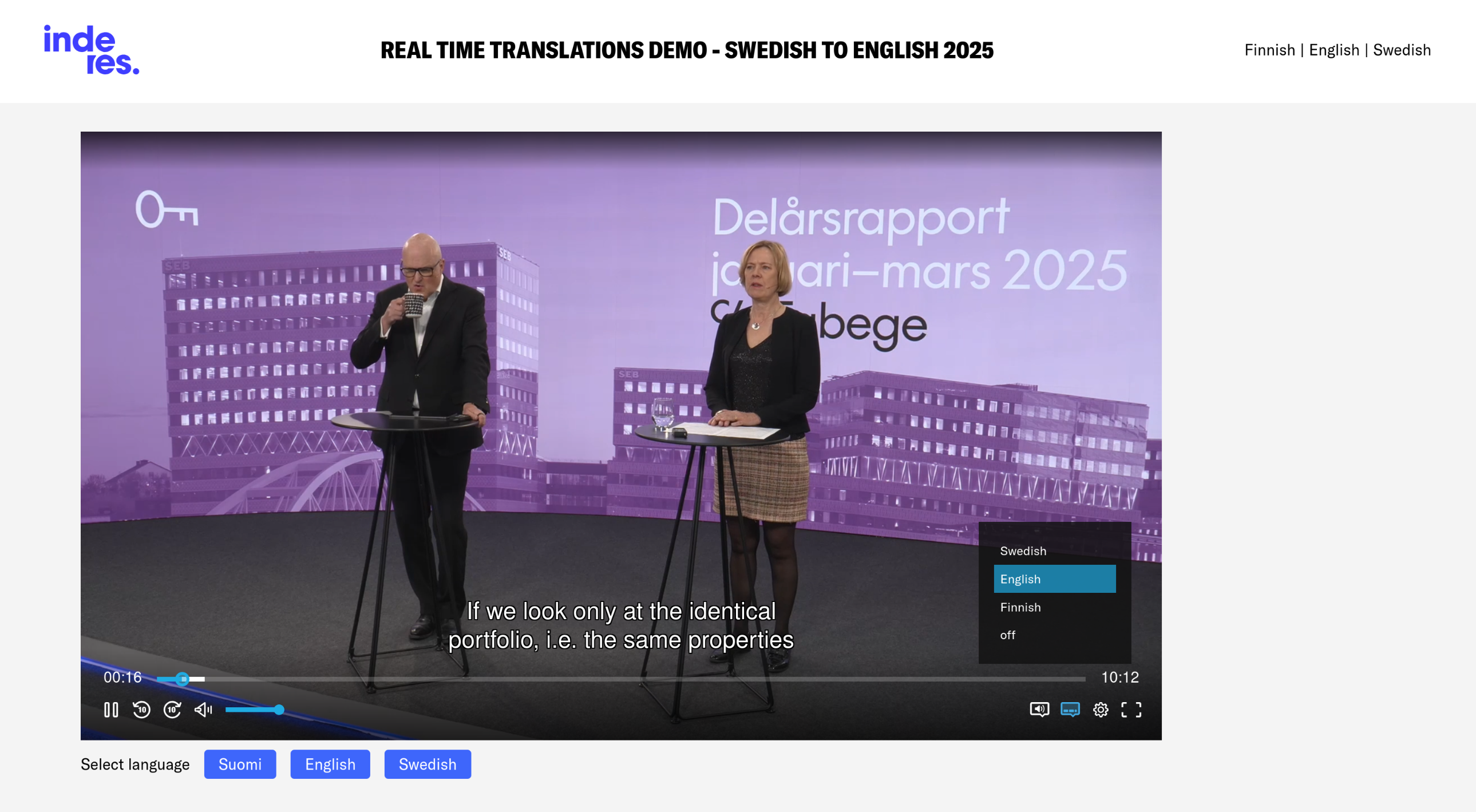
If you want to see a demo, you can see one here .
Language settings
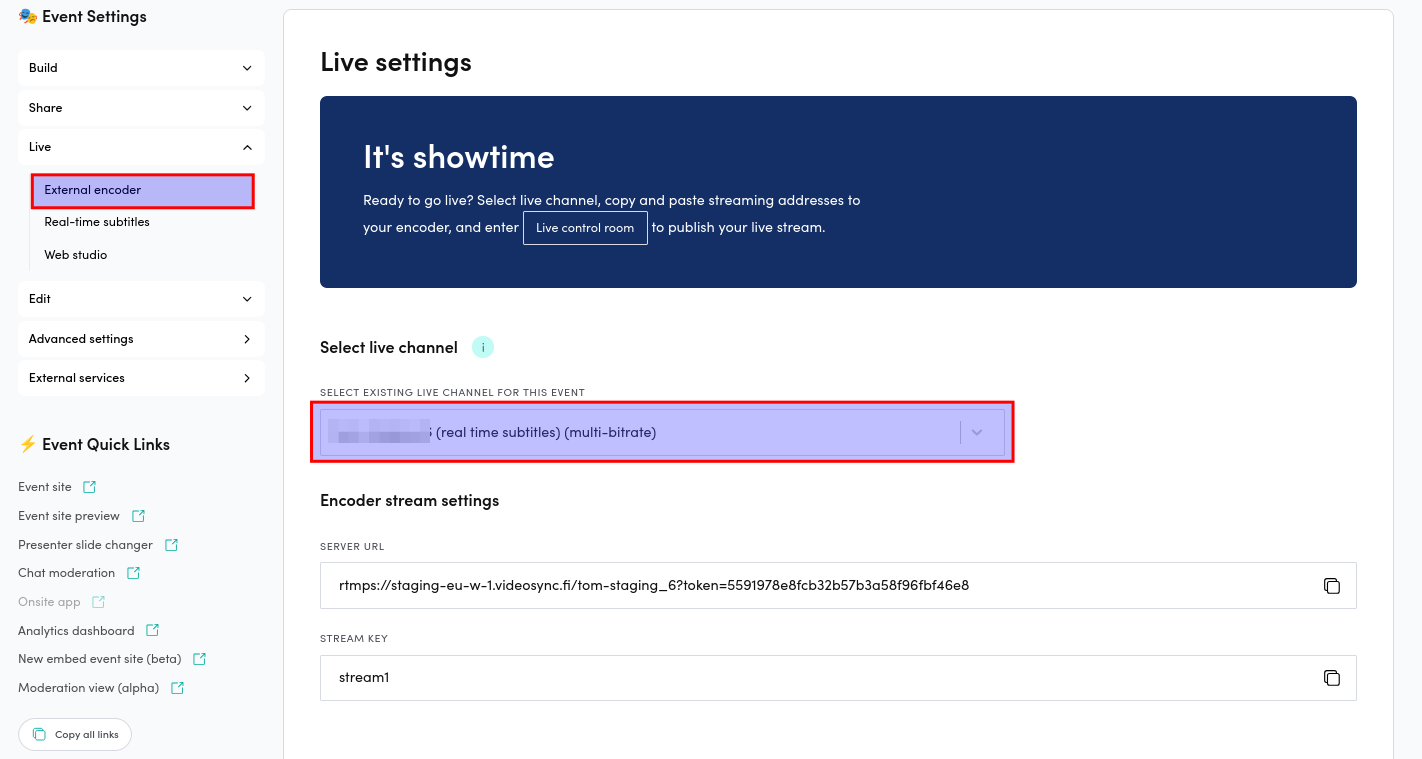
- Make sure that you have Real-time Subtitles compatible live channel selected. If Videosync Support has enabled Real-time subtitles but you can’t see them in the menu under Live section, you most probably don’t have the Real-time subtitles compatible live channel selected. The right live channel has Real-time subtitles in its name.
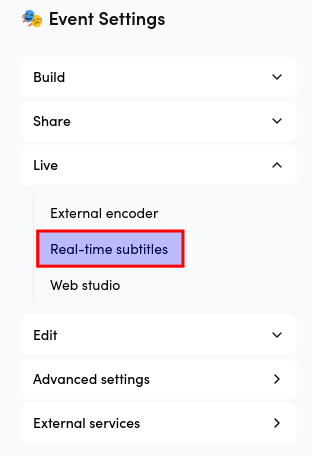
- When you have the right live channel selected, you can find Real-time subtitles under Live section of the Videosync’s Event Admin menu. Click it to open the language settings.
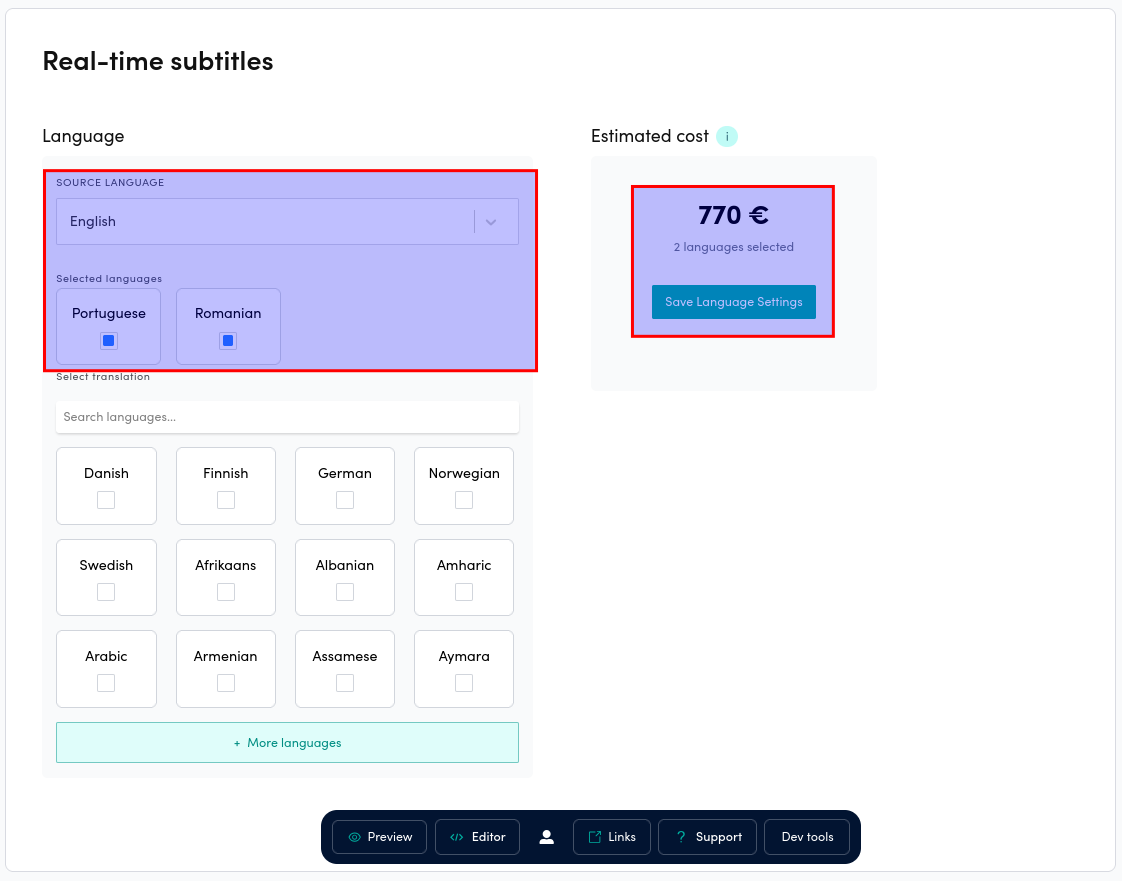
- Now you should see settings for Source language for the spoken language, Selected languages for translations that will be shown as real-time subtitles, and the Save button with Estimated cost above it keeping you informed about the estimated costs. The cost estimation is based on the amount of translations and the estimated duration based on the event duration in event’s settings. The price will be based on the actual duration of the stream.
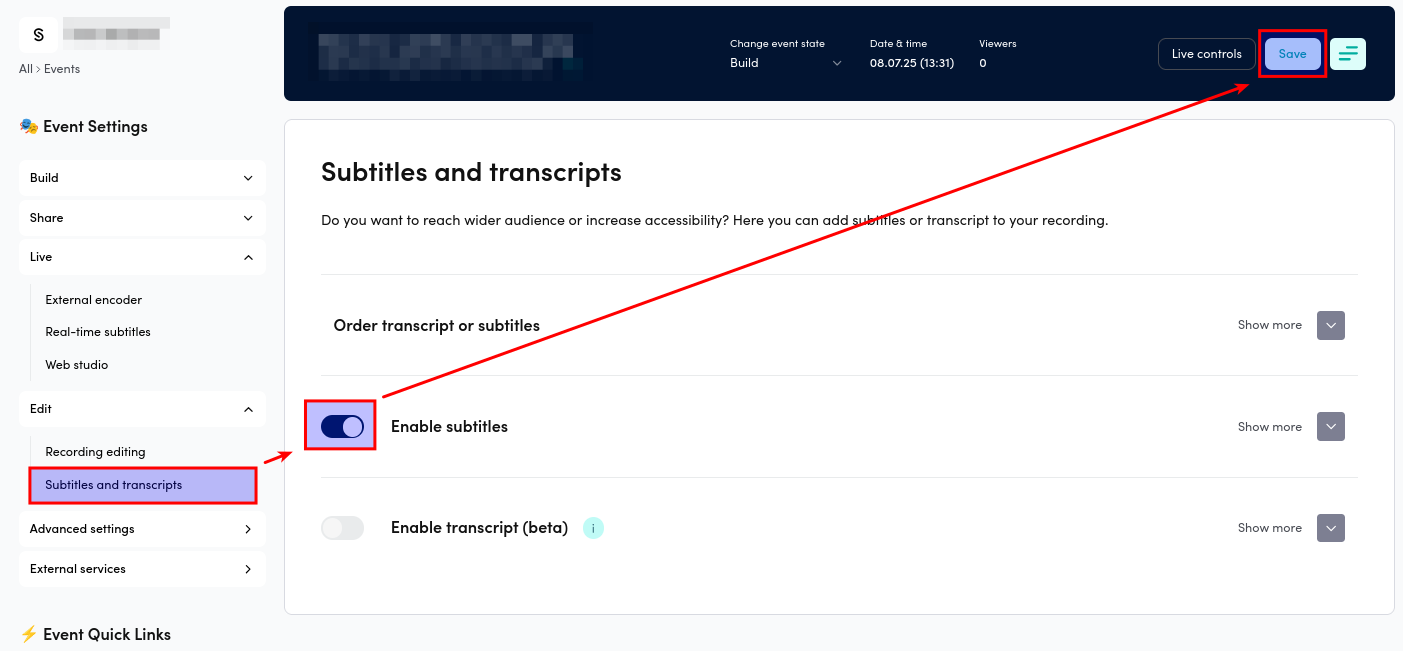
- The last step is to enable the subtitles in Subtitles → Enable subtitles. Don’t forget to save the settings!
Turning the service on and off
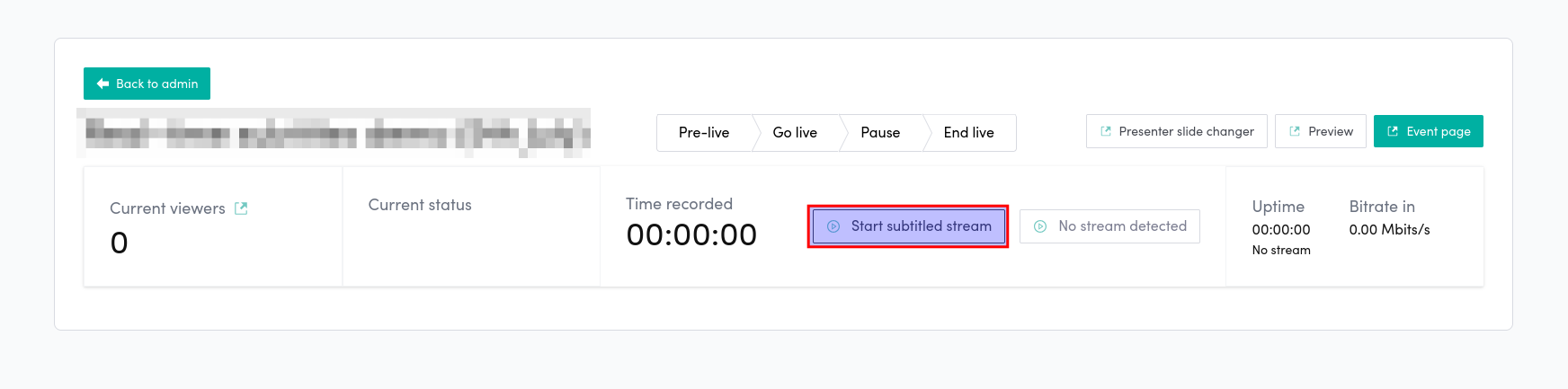
- You turn on the service before the event by clicking Start subtitled stream button. Seeing this button requires having the Real-time subtitles capable live channel selected.
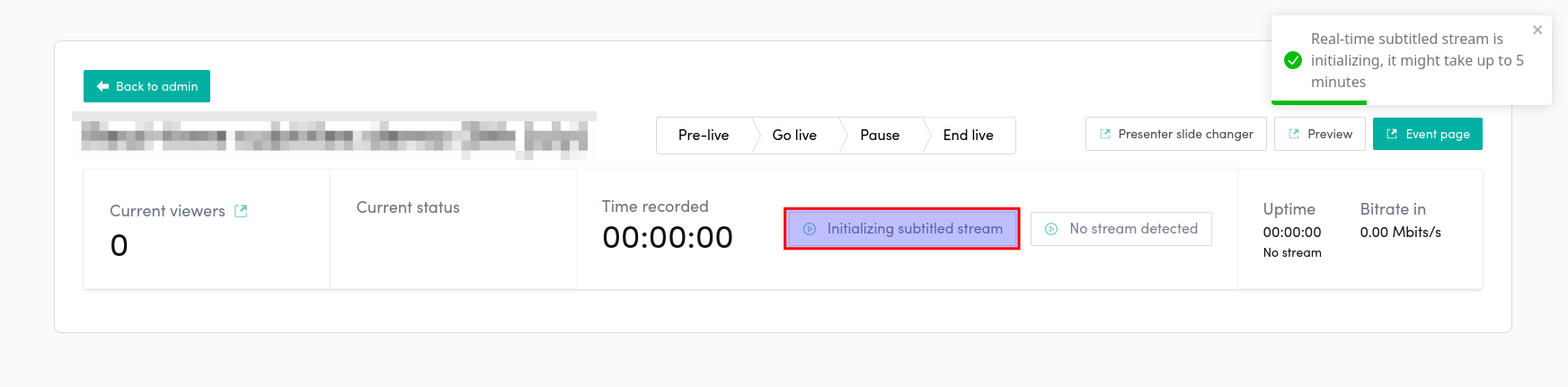
- You should turn on the stream 5 minutes before you need it, since turning it on might take up to 5 minutes depending on the load on the servers. When you have started the Real-time Subtitles service, you will see Initializing subtitled stream until the service is up and running.
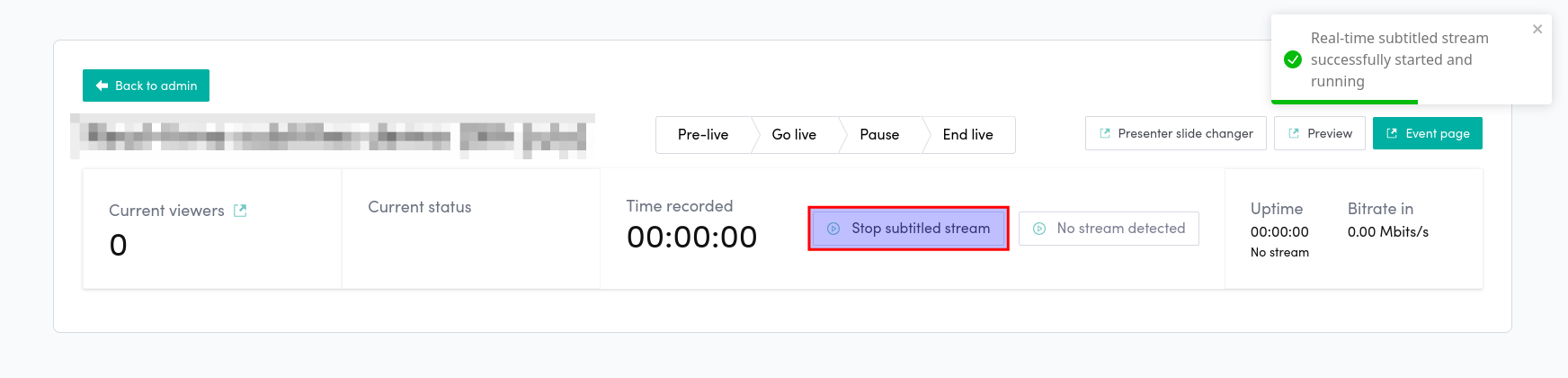
- Once the Real-time Subtitles service is up and running, you will see a notification and there will be Stop subtitled stream text in the button.
- When the Real-time Subtitles service is up and running, you can start streaming to the live channel from you encoder with the RTMPS URL and stream key used by the Real-time Subtitles compatible live channel. You can see Bitrate in showing when Videosync is receiving your stream, but you should be aware that the delay with Real-time Subtitles capable live channel is 60 seconds.
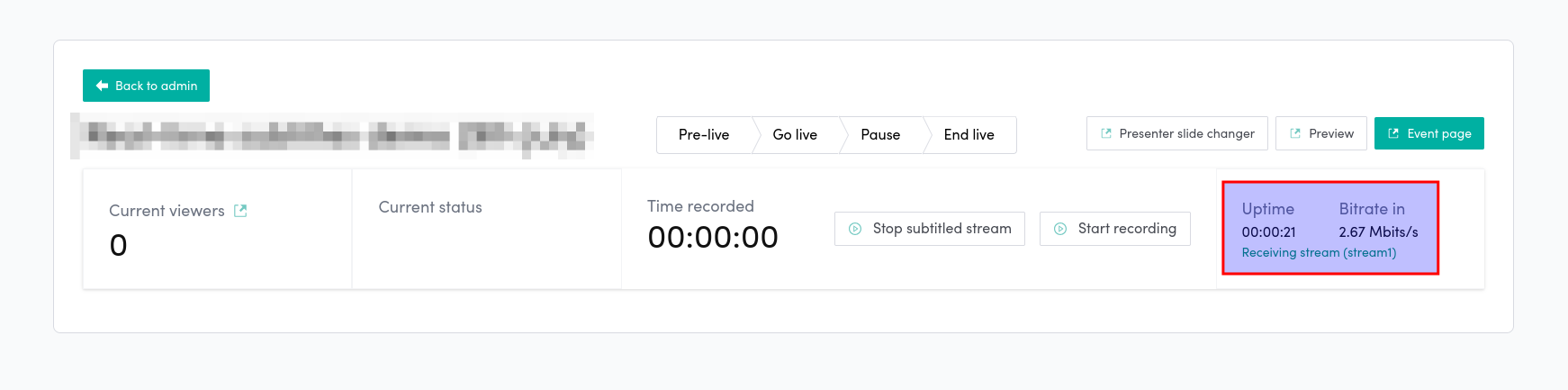
- Ending the stream. When you are ready to end the stream, it is recommended to set the event to End live state first, then click Stop subtitled stream and after that stop the encoder.
Features
Glossary
It is crucial for quality of the subtitles to use glossary, because without it the AI has no clue whether the CEO’s first name is Kathy or Kati. Also acronyms and other important words that could be heard or written wrong should be added in the glossary in order to maintain good quality in real-time subtitles. Consider adding especially names and acronyms.
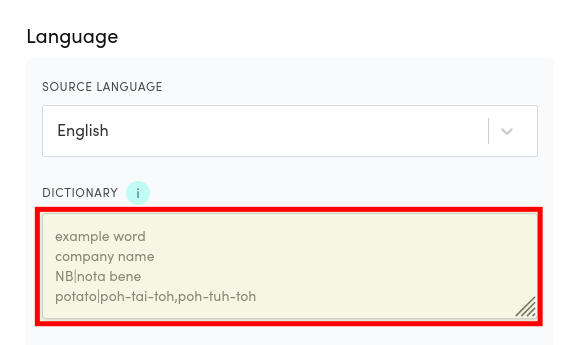
The simplest way to use glossary is to add one word or phrase per line. This very often makes a huge difference compared to situation where there is no glossary used.
If the AI doesn’t seem to catch some words or phrases, it might be because of different pronunciation than what the AI expects. You can mitigate that by fine-tuning the glossary entries by adding alternative pronunciations after pipe (|) symbol. The pipe symbol (|) to separate it from the primary written form. You can add multiple alternative pronunciations by separating them with a comma.
Glossaries are language specific. So when you change spoken language, you will be editing a different glossary.
FAQ
Will I be able to download the subtitles or use them in the VOD?
The Real-time Subtitles is used for real-time subtitles and they can’t be used for the recording directly. If you need translated subtitles for the VOD, you can order VOD subtitles with Amberscript (Edit → Subtitles and Transcripts → Order transcripts or subtitles). The translated subtitles aren’t exactly the same but we have tools for creating translated subtitles.
Can I change the appearance of the subtitles?
Yes, you can do it via CSS. For example, this snippet gives the subtitles semi-transparent black background, sets the font and shows how to edit other relevant parameters:
/* BLACK BACKGROUND FOR THE SUBTITLES */
.bmpui-ui-uicontainer .bmpui-ui-subtitle-overlay {
    display: inline !important;
}
.bmpui-ui-subtitle-label {
  display: inline !important; /* Ensures it doesn’t force full width */
}
.bmpui-ui-subtitle-label span {
  display: inline !important;
  background-color: rgba(0, 0, 0, .75) !important;
  padding: 7px 5px 2px 7px !important;
  line-height: 1.6 !important;
  font-family: Arial, Helvetica, sans-serif !important;
}
Feel free to tweak it for your needs!
I can’t see my subtitles. What to do?
First, make sure that you have enabled the subtitles in Subtitles → Enable subtitles and that you have saved the event. Then make sure that you have chosen subtitles in the lower right corner of the video player. If that doesn’t help, turn subtitled stream off in Live Tool, restart encoder, turn subtitled stream back on and when Real-time subtitles service is ready, start streaming again.
My real-time subtitles are out of sync. How to fix that?
AI-generated subtitles that are created real-time aren’t always perfect in terms of content nor timing. But if there is delay that is something like 2 seconds or more, it might be synchronization issue which might happen when starting the stream. To fix it, you can turn subtitled stream off in Live Tool, restart encoder, turn subtitled stream back on and when Real-time subtitles service is ready, start streaming again. This most often fixes the real-time subtitles synchronization inaccuracies.
I can’t choose the original language as translation. Is it a bug?
The original language will always be included in the shown subtitles and it’s not shown as translation because it’s not translated. So if you choose no translations, the player will show the original language subtitles.